

Is restarting SQL Server always the right fix? In theory Microsoft SQL Server never needs a restart, and a healthy, well maintained SQL Server can run forever.
In the real world, though, we sometimes have to restart the SQL Server service. After an installation or an update, for instance, you may be asked to restart SQL Server. In cases like that we first have to make sure every connection to SQL Server is closed. But remember, a restart clears memory and the plan cache completely, rebuilds tempdb and forces every query plan to be recompiled.
On top of that, everything gathered by the Dynamic Management Views (DMVs) used to diagnose problems and tune performance is lost after a restart. Which is why it matters a great deal to know when and why you should restart the SQL Server service.
In this article we cover the situations where restarting SQL Server is necessary, its effects on performance and the risks you can meet afterwards. We also go through the checks to make before restarting and the ways to restart the SQL Server service safely.
Why and when is SQL Server restarted?
Restarting the SQL Server service is an important operation database administrators reach for in certain situations. But pressing the "restart" button for every problem is not the right approach. In this section we look at why and in which situations SQL Server should be restarted.
A real scenario: needing a restart during planned maintenance
At a large e-commerce company in Istanbul, during weekend planned maintenance, the system administrator had to move the physical location of the system databases to faster storage. A change like that is one of the rare situations that genuinely requires restarting SQL Server.
The database administrator first made sure every user had logged out. When changing the physical location of the system databases (master, msdb, tempdb) they had to restart the SQL Server service for those changes to take effect. Planned maintenance of this kind is usually carried out when user traffic is at its lowest.
Another scenario requiring a restart during planned maintenance is applying SQL Server updates or security patches. After updates are installed, restarting SQL Server makes the changes effective and lets the system carry on with the latest configuration.
Common reasons for a restart: updates and configuration changes
The most common reasons for restarting SQL Server are:
- Security updates and patches: database servers need regular updates to close security holes, fix bugs and improve general performance.
- Configuration changes: some configuration changes require a SQL Server restart. Among them:
- Changing the default database locations
- Instant file initialization settings
- Moving the physical location of the system databases
- Persisted trace flags
- Hardware changes and maintenance: when upgrading components such as RAM or storage drives, a restart is usually needed for the new hardware to be detected and configured properly in the server setup.
- Resource management: SQL Server can consume a significant amount of resources such as CPU, memory and disk space. In some cases restarting the server may be needed to reclaim those resources and prevent problems caused by resource exhaustion.
It is worth stating clearly that some configuration changes do not require a SQL Server restart. Adding or removing a database file, for instance, needs no service restart.
Special cases requiring a restart
Some special situations that may require you to restart SQL Server:
Corrupt databases can stop the SQL Server service from starting. Three system databases are needed for the SQL services to start: the master database, the model database and tempdb. If one of these has a corruption problem, the SQL Server service may fail to start.
If there is corruption in the master database, the recommended fix is to restore the database from a backup. For corruption in the model database, the SQL Server Model Database Repair procedure can be applied.
SQL Server may also be restarted during troubleshooting and performance tuning. When certain problems appear, such as slow performance or unexplained errors, restarting the server can often be a quick fix for transient issues.
Even so, remember that not every operation on SQL Server needs a restart. On Windows, SQL Server can be paused and resumed without having to stop the service. The pause feature is useful when you want to wait for users to finish their work and then stop the service.
To stop the Database Engine you can use the Transact-SQL 'SHUTDOWN' command. To use it you must be a member of the sysadmin or serveradmin fixed server roles. You can use SHUTDOWN; to wait for running Transact-SQL statements and stored procedures to finish, or SHUTDOWN WITH NOWAIT; to stop the Database Engine immediately.
In conclusion, restarting SQL Server is an operation needed in certain situations. But rather than reaching for a restart at every problem, understanding the source of the problem and assessing whether a restart is really required is the sounder approach.
The performance impact of restarting
Restarting the SQL Server service has significant effects on performance. Most database administrators press the restart button as a quick fix for performance problems, but while that approach helps in the short term it can hurt performance in the long run. In this section we look in detail at how a restart affects SQL Server performance.
A real scenario: a system that slowed down after a restart
At a finance company in Ankara, the database administrator restarted SQL Server after complaints of slowness from users. The system sped up after the restart, but within half an hour performance dropped again and users experienced worse slowness than before. The administrator realised that every query plan had been recompiled after the restart and the plan cache had been cleared completely. That caused the system to slow down until it optimised itself again.
In reality, when SQL Server is restarted it loses its query plan cache entirely and has to build a new plan the first time each query runs. That makes the first minutes after a restart slower than expected.
Memory and plan cache being reset
When you restart SQL Server the following significant performance effects appear:
- Memory usage: the restart returns all the memory SQL Server was using to the operating system. After the restart SQL Server has to take that memory back from Windows, and that takes time. During that period SQL Server reads a great deal of data from disk and loads it back into memory.
- Plan cache loss: the SQL Server plan cache holds precompiled execution plans for frequently run queries. That improves query performance by reducing the cost of creating and recompiling execution plans over and over. After a restart every cached query plan is lost and SQL Server has to recompile them.
- Query performance: because all plan information in the cache is lost, after a restart every query behaves as if it is running for the first time and a new plan is built. That can have a significant effect on query times, especially for complex queries.
An important point: you do not need to restart SQL Server to clear the plan cache. You can use the DBCC FREEPROCCACHE command instead. It clears the plan cache and lets you refresh it without stopping the SQL Server service entirely.
Also, the plans built after a restart are not always the best ones. SQL Server takes the current indexes and statistics into account when building a plan, but the plans optimised over time through fine tuning and "intelligent feedback" techniques are lost after a restart.
TempDB being rebuilt
When you restart the SQL Server service the tempdb database is rebuilt entirely. That is an important factor directly affecting tempdb performance:
- TempDB size: when SQL Server starts, tempdb is recreated using a copy of the model database and reset to its last configured size. The configured size is the last explicit size set by an
ALTER DATABASEcommand or a file size change operation such asDBCC SHRINKFILE. - Autogrowth: by default tempdb is configured to grow automatically when needed. So over time it can reach a larger size than expected. An interesting point is that larger tempdb sizes do not hurt SQL Server's performance.
- Transaction log behaviour: SQL Server records only enough information in the tempdb transaction log to roll a transaction back, not information to redo transactions during database recovery. That improves the performance of INSERT statements in tempdb. And because tempdb is rebuilt on every SQL Server restart, it has no transactions to roll forward or back.
In conclusion, restarting SQL Server has various effects on performance. Clearing the plan cache and rebuilding tempdb in particular affect system performance directly. When a restart is needed, planning around these effects and informing users will help you minimise possible problems. Expect slowness in the first minutes after a restart and give the system time to return to normal performance.
Risks met after a SQL Server restart
When you restart SQL Server you can meet various risks. It may look like a quick fix, but a restart can lead to unexpected outcomes. In this section we look at the potential risks of restarting SQL Server.
A real scenario: a long running transaction rollback
At a finance company in Izmir, the database administrator had a problem on a database with a 2 TB transaction log. The administrator restarted SQL Server to solve it. But during the restart, rolling back the incomplete transactions took unexpectedly long. The rollback progressed only 2% a day for the first two weeks and eventually stopped entirely at 22%. The whole process took about 60 days, and the database was unusable throughout.
When you restart SQL Server the Crash Recovery process begins. In that process SQL Server rolls back every transaction not yet committed. Rollback can take a long time depending on the size of the transaction, and during that time the database may not be fully accessible.
An important point: restarting SQL Server to stop an incomplete transaction is usually the wrong approach. Because after the restart SQL Server will not make the database accessible until recovery is complete. What is more, when the transaction log fills up, restarting SQL Server can make things worse rather than solving the problem.
If there are long running transactions on a large database, rolling them back can take hours or even days. So when deciding whether to restart SQL Server, especially in production, that risk has to be taken into account.
Loss of DMV data
Dynamic Management Views (DMVs) provide valuable performance and state information gathered from SQL Server's internals. But those views hold no persistent data and are reset every time SQL Server restarts. For example:
- Query statistics (sys.dm_exec_query_stats)
- Server performance metrics
- Connection and session information
- Memory usage statistics
- Disk I/O metrics
When you have a performance problem and are using DMVs to troubleshoot, restarting SQL Server makes you lose all your diagnostic data. That can make it impossible to identify the source of the problem.
One of the most important DMVs, sys.dm_exec_query_stats, holds detailed information about every current execution plan. It records data such as the number of compilation attempts, total CPU resources used and execution count, and can be an excellent tool for optimising the server's CPU usage. All that valuable information is lost after a restart.
To check the last restart time after a SQL Server restart you can use one of the queries below:
SELECT sqlserver_start_time FROM sys.dm_os_sys_info;
SELECT login_time FROM sys.dm_exec_sessions WHERE session_id = 1;
SELECT create_date FROM sys.databases WHERE name = 'tempdb';
These commands help you determine when SQL Server was last restarted and therefore when the DMV statistics were reset.
The risk of a bad execution plan
When SQL Server is restarted, every query plan in the cache is lost and the server has to recompile every execution plan. And the newly compiled plans are not always as efficient as the previous ones.
At a financial services company, after a SQL Server restart a report query that had run without problems started running 10 times slower because a different execution plan was produced. Because of plan instability, SQL Server built a different and less efficient execution plan after the restart, and that plan was cached and used over and over.
Especially for complex queries, plans built with different parameter values (parameter sniffing) can cause performance problems. After a restart, when the system builds new plans based on parameters, it can produce worse performing plans in place of the previously optimised ones.
An important note: you do not need to restart SQL Server to clear the plan cache. You can use the DBCC FREEPROCCACHE command instead. But that command also requires high permissions and can cause unwanted blocking on busy systems.
You can also use the OPTION(RECOMPILE) hint to have specific queries recompiled. That approach lets you refresh only the plans of the problematic queries without clearing the entire plan cache.
In conclusion, restarting SQL Server may look like a quick fix but it carries significant risks such as long running rollbacks, the loss of valuable DMV data and bad query plans. Those risks should be taken into account when deciding on a restart, and less risky alternatives should be considered where possible.
When should you not restart SQL Server?
Restarting SQL Server for every performance problem is usually an unnecessary and dangerous route. In many cases, restarting SQL Server for a problem that could be solved without it leads to wasted time and extra problems. In this section we look at when you should not restart SQL Server and what the alternatives are.
A real scenario: a system whose problem a restart did not solve
The database administrator at an e-commerce company was regularly restarting SQL Server to solve slowness. But after each restart the system worked well for a few hours, then slowed down again. Investigating, they discovered the real problem was a large number of ad-hoc SQL queries accumulating in the plan cache. The restart temporarily cleared memory, but because it did not solve the root cause the problem kept coming back.
In situations like that, restarting SQL Server hides the symptoms temporarily rather than solving the problem. For issues such as plan cache bloat, changing parameterisation settings or optimising query plans offers a more lasting fix than a restart.
Also, many configuration changes do not require a SQL Server restart. Options such as min server memory and max server memory, for example, are updated dynamically in the Database Engine. So you can change them without restarting the server.
Alternative fixes: configuration changes, query optimisation
Rather than restarting SQL Server you can consider alternatives in the following situations:
- For memory problems: adjusting memory settings usually needs no restart. Settings such as minimum and maximum server memory, minimum memory per query and index creation memory can be changed dynamically.
- For clearing the plan cache: you do not need to restart SQL Server to clear the plan cache. Use the
DBCC FREEPROCCACHEcommand instead. - For configuration changes: many configuration options can be changed dynamically with
sp_configure. To see whether a change is applied dynamically you can runsp_configure '<configname>'. The values in therun_valueandconfig_valuecolumns should match for an option that updates dynamically.
The following database level settings also require no restart:
- Enabling or disabling Query Store
- Changing database files and filegroups
- Auto close database
- Auto shrink database
- Auto create and update statistics
- Snapshot isolation and Read Committed Snapshot Isolation (RCSI)
For problems with long running or unfinished queries in particular, you can optimise the query rather than restart SQL Server. By capturing the estimated query execution plan XML you can find and apply a missing index recommendation. To build a better plan you can try query hints such as HASH JOIN, MERGE JOIN, FORCE ORDER, FORCESEEK or RECOMPILE.
The long term harm of frequent restarts
Restarting SQL Server frequently does serious long term harm:
- Increased I/O load: after every restart SQL Server performs a great deal of physical I/O reading data from disk and loading it back into memory. That creates significant load, especially on large databases.
- Performance drop: because all query plans are lost, SQL Server has to build a new execution plan for every query. That causes performance to drop after a restart.
- Loss of diagnostic data: everything gathered by the DMVs (Dynamic Management Views) is lost, which makes diagnosing performance problems harder.
- Plan instability risk: after a restart SQL Server can build different and possibly less efficient execution plans. That can make queries that previously performed well slow down.
- Transaction rollback processes: during a restart, incomplete transactions are rolled back, and with large transactions that process can take a very long time.
On top of that, restarting SQL Server frequently can hurt the server's general stability and reliability. As Paul Randal put it: "If you are restarting SQL Server regularly, make sure there is a good reason for it, and do not do it just because someone thinks it is a good thing or because it is the chosen way to fix a problem that should be solved another way."
In conclusion, rather than always thinking of a restart as the first option for solving SQL Server performance problems, analysing the problem and considering the alternatives is the sounder approach. In many cases methods such as configuration changes or query optimisation can solve the problem without restarting SQL Server and keep the system stable in the long run.
A checklist before restarting SQL Server
Once you have decided to restart the SQL Server service, you should always work through a checklist first. Restarts carried out without proper preparation can lead to data loss, long outages and even broken system integrity. In this section we cover what to check and how to prepare before restarting SQL Server.
A real scenario: a restart while users were active
At a manufacturing company in Bursa, the system administrator restarted SQL Server during working hours to solve performance problems. Because it was done without checking user connections, active transactions were cut short and some data inconsistencies appeared. Happening during the financial reporting period, that incident cost the company significant time and data.
To avoid scenarios like that, checking current user connections and running transactions before a restart is essential. For restarts during working hours in particular, users need to be informed in advance and given the chance to finish their work.
Closing connections
Closing current user connections properly before a restart is critical to protecting data integrity. Steps you can follow:
- Check the connection state: you can use
sp_whoorsp_who2to see active users. - Use the pause function: before stopping the Database Engine service you can use the "Pause" feature. That lets current users finish their work while no new connections are made. It is ideal when you want to wait for users to finish before stopping the service.
- Inform users: before a planned restart, send a notification so users can finish their work and log out.
- Check blocked transactions: long running transactions can cause delays while being rolled back during the restart. Detecting and ending them beforehand speeds the restart up.
Remember that by default only members of the local administrators group can start, stop, pause, resume or restart SQL Server services.
Stopping external services
Stopping the external services interacting with SQL Server properly matters for the restart to go smoothly:
- Identify dependent applications: find the applications connecting to SQL Server, such as ETL processes, reporting services or backend services.
- Check the services: stop related services such as SQL Server Agent and SQL Server Browser. You can stop them through SQL Server Configuration Manager or with the commands below at the command prompt.
net stop "SQL Server Agent (MSSQLSERVER)"
net stop "SQL Server Browser"
3. Create a dependency strategy: make a plan for how those services will be managed during the restart.
A point to note is that unlike SQL Server, the SQL Server Agent service cannot be paused or resumed. So SQL Server Agent has to be stopped and started completely.
Backup check
Having a current backup before a restart is the most important safeguard against possible data loss:
- Check the last backup status: make sure the backups are current and complete. That prevents data loss if something goes wrong during the restart.
- Take a quick backup: if possible, take a quick backup before the restart. That protects the most current data.
- Review your recovery plan: plan in advance how you will proceed if you meet a problem after the restart.
Remember that to stop the Database Engine with the Transact-SQL SHUTDOWN command you must be a member of the sysadmin or serveradmin fixed server roles, and that this permission is not transferable.
In conclusion, working through this checklist before restarting SQL Server will make the operation go smoothly and minimise the possible risks. We would also remind you that you can use the DBCC FREEPROCCACHE command instead of restarting SQL Server to clear the plan cache.
Restarting the SQL Server service safely
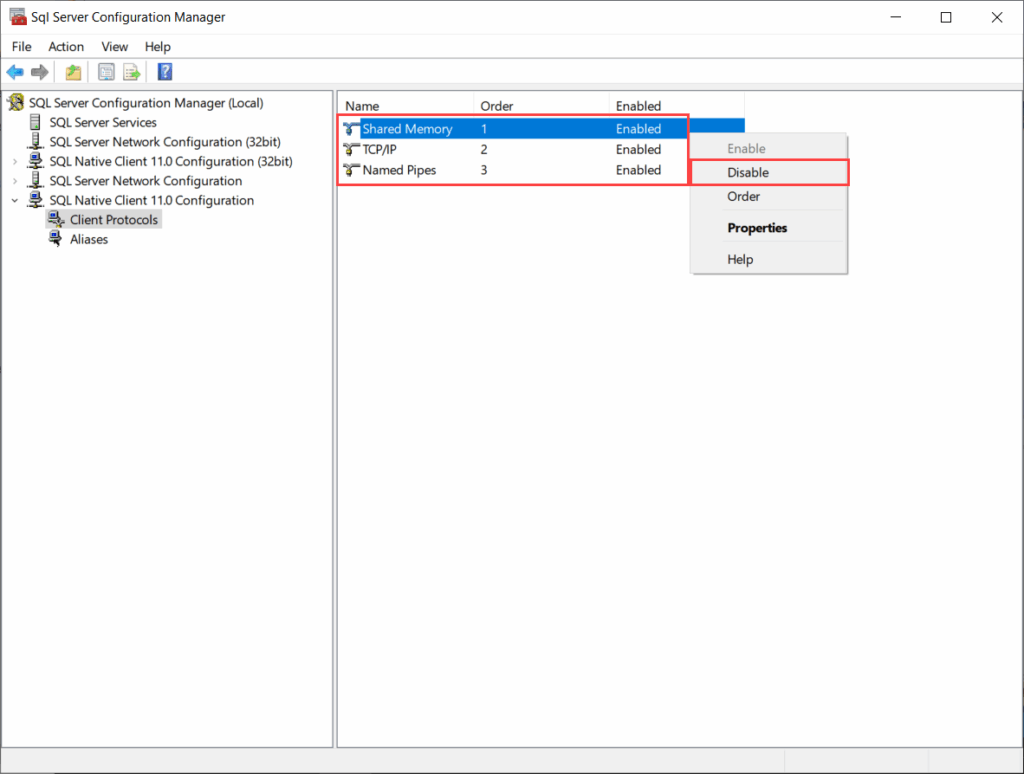
Image Source: SQL Shack
A safe SQL Server restart is a fairly simple process when the right tools and commands are used. Done wrongly it can lead to data inconsistencies and long outages. There are several different ways to carry out a restart safely.
Restarting with SQL Server Configuration Manager
A database administrator working in the finance sector always preferred SQL Server Configuration Manager for restarting SQL Server safely during planned maintenance. It is the official Microsoft tool and carries out the restart in the safest way.
To open SQL Server Configuration Manager you can follow these steps:
- From the Start menu select All Programs > Microsoft SQL Server > Configuration Tools > SQL Server Configuration Manager.
- In the left pane select SQL Server Services.
- In the results pane, right click the SQL Server instance you want to restart (SQL Server (MSSQLSERVER) for the default, or a named instance).
- From the menu that opens select Restart.
- Select OK to close SQL Server Configuration Manager.
You may also need to restart the SQL Server service after enabling the TCP/IP protocol for the changes to take effect.
Using the restart sql service command
In the automated maintenance processes of an e-commerce company, a need arose to restart the SQL Server service from the command line. The system administrator preferred to do it using the command prompt or PowerShell.
To restart the SQL Server service from the command prompt:
- Open the command prompt with administrator rights.
- Type the following command to stop the default SQL Server instance:
net stop "SQL Server (MSSQLSERVER)"
Then to start it:
net start "SQL Server (MSSQLSERVER)"
For a named instance you should give the instance name as MSSQL$instancename instead of MSSQLSERVER in the commands above.
A restart using PowerShell can be done like this:
Restart-Service -Name 'MSSQLSERVER'
Checks after restarting the SQL Server service
At a public institution in Ankara, SQL Server was restarted on the assumption the system had stopped, but the dependent services were not checked. Errors appeared in the system after the restart.
After the restart you should check the following:
- Verify that the SQL Server service is running successfully.
- Start dependent services such as SQL Server Agent as well:
net start SQLSERVERAGENT
To see the last restart time you can run the query below.
SELECT sqlserver_start_time FROM sys.dm_os_sys_info;
Monitor the state of the plan cache after the restart.
Remember that you do not need to restart SQL Server to clear the plan cache. Use the DBCC FREEPROCCACHE command instead.
If you found this post useful, do share it and discuss it on LinkedIn and Twitter. For more, follow caglarozenc.com, DMC Bilgi Teknolojileri and SQLekibi.com!
Key takeaways
Restarting SQL Server is not always the right fix. This guide explains when you should restart and which risks you take on.
• Restart only when necessary: avoid restarts except for mandatory situations such as security updates, moving system databases and hardware changes
• Use alternatives for performance problems: DBCC FREEPROCCACHE for clearing the plan cache and dynamic configuration changes for memory settings need no restart
• Prepare before the restart: close user connections, take a backup and stop dependent services. Otherwise there is a risk of data loss
• Expect a performance drop after the restart: because the plan cache and memory are cleared, there will be slowness until the system returns to normal
• Long transactions can block a restart: incomplete large transactions can cause rollbacks lasting days after a restart
Restarting SQL Server frequently brings short term relief but damages system stability in the long run and delays the real fix by masking performance problems.
FAQ, frequently asked questions
Q1. When should I restart SQL Server? You should restart SQL Server only in mandatory situations such as security updates, moving system databases or hardware changes. For performance problems there are usually alternatives.
Q2. What are the risks of restarting SQL Server? A restart can lead to data loss, long outages and a drop in performance. Incomplete large transactions can also cause rollbacks lasting days.
Q3. How do I restart SQL Server safely? The safest method is using SQL Server Configuration Manager. Alternatively you can restart from the command line or PowerShell. Do not forget to close user connections and take a backup beforehand.
Q4. How can I solve performance problems without restarting SQL Server? You can use the DBCC FREEPROCCACHE command to clear the plan cache, change memory settings dynamically or optimise queries. In many cases a restart is not needed.
Q5. What should I watch after SQL Server restarts? Expect a performance drop after the restart until the system returns to normal. Make sure dependent services are running and monitor the state of the plan cache. You can also use specific queries to check the last restart time.